Hi @Kester, Nicole,
Thank you for posting your question in the Microsoft Q&A forum, and I’m sorry to hear you're having trouble accessing your school account due to Microsoft Authenticator app.
To help us better assist you, could you please clarify the following:
- Have you previously set up the Microsoft Authenticator app on any device for this account, or is this your first time trying to sign in?
- If so, are you currently using the same device where you originally registered the Authenticator app? Have you recently switched to a new device?
While we await your response, and in addition to the steps recommended by the Q&A assist (steps 1, 2, 3, and 5), consider trying the following actions to help resolve the issue:
1/ Use an alternative sign-In method
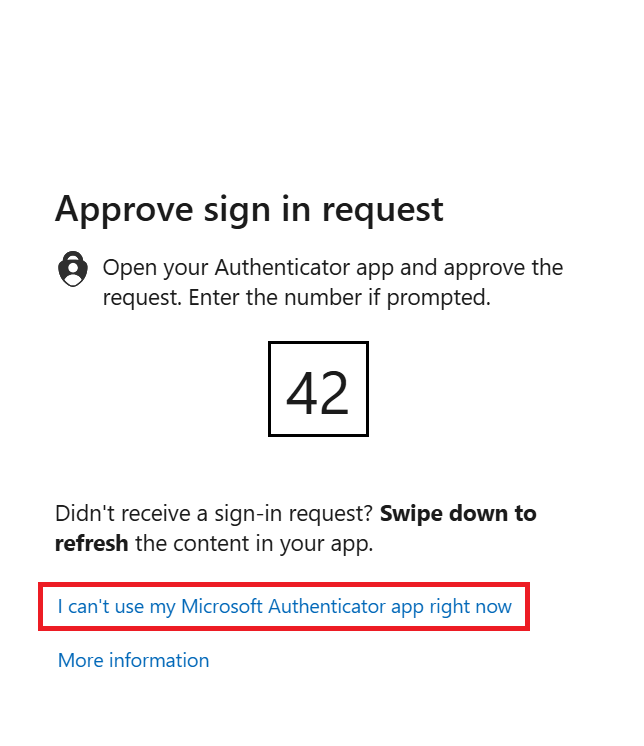
Sign into Outlook with your school account and when prompted for a code, on the sign-in request screen, click “I can’t use my Microsoft Authenticator app right now.”
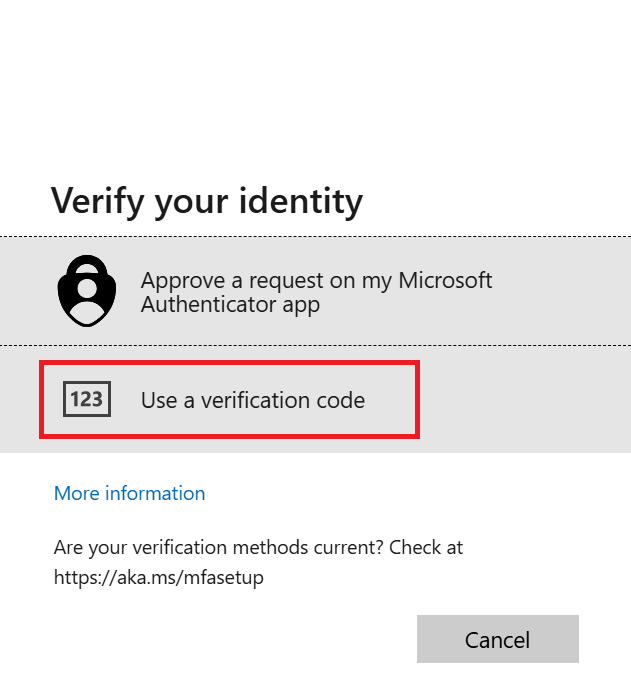
Select "Use a verification code"
Switch to the Authenticator app on your mobile device.
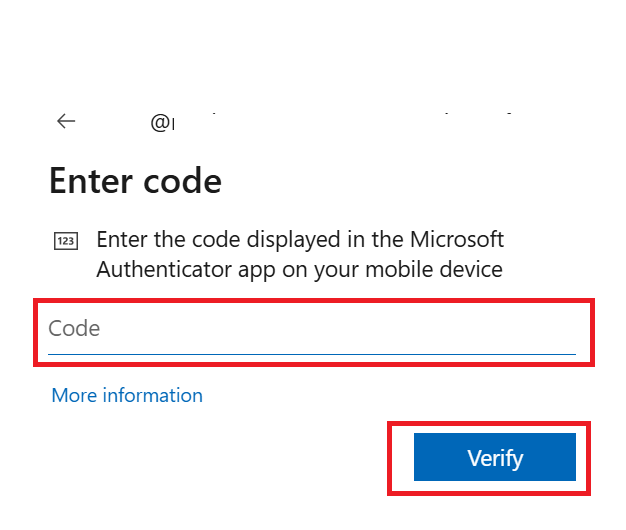
Tap your school account, then locate the One-time password code (a 6-digit code).
Enter this code in the verification field on your computer screen and click Verify.
2 / Contact your IT admin
If the above steps cannot apply to your situation, you’ll need your school’s IT administrator to reset your MFA settings. Since these settings are managed by your school's IT department, please contact them directly for assistance in regaining access to your account.
Specifically ask them to “Reset my MFA settings or allow me to re-register for MFA". This is a standard request, and your school's IT team should be able to assist you with it.
You can also share the steps in this Microsoft article for them so they can help reset your MFA settings for you Manage user authentication methods for Microsoft Entra multifactor authentication.
Once your school's IT admin has reset your MFA, the next time you log in to your account, you will be guided through the process of setting up the Microsoft Authenticator app again from the beginning by scanning a QR code. This allows you to access your account normally.
Please note that forum moderators do not have access to user account settings and cannot assist with logging in, resetting passwords, or changing access rights. While we do not have access to internal systems or administrative tools required to resolve account-specific or backend-related issues, we’ll continue doing our best to support you within the scope of our responsibilities.
I hope this helps you regain access to your account quickly. I'm glad to assist and truly hope the information provided has been useful. Please feel free to reach out anytime if you need further assistance.
If you find my post helpful, kindly consider marking it as the accepted answer. Doing so can assist others in the community who may have similar questions in finding solutions more quickly.
Thank you for your kindness and contributions to the forum.
If the answer is helpful, please click "Accept Answer" and kindly upvote it. If you have extra questions about this answer, please click "Comment".
Note: Please follow the steps in our documentation to enable e-mail notifications if you want to receive the related email notification for this thread.
' cx='32' cy='32' r='32' /%3E%3Ctext x='50%25' y='55%25' dominant-baseline='middle' text-anchor='middle' fill='%23FFF' %3EKN%3C/text%3E%3C/svg%3E)


' cx='32' cy='32' r='32' /%3E%3Ctext x='50%25' y='55%25' dominant-baseline='middle' text-anchor='middle' fill='%23FFF' %3ELV%3C/text%3E%3C/svg%3E)