Hi @Cruz, Candice,
Thank you for posting your Microsoft Q&A Forum.
Based on your query, your users are clicking Log In in the Salesforce app/Add‑in inside Outlook, but nothing happens and the button is unresponsive. There are many causes that could causes this behavior. You can try the following steps to see which aligned with your situation:
- User is blocked from authenticating because the Microsoft Power Platform connected app is not approved
When signing in from the Sales app in Outlook, authentication can silently fail if the org has blocked consent to the Microsoft Power Platform connected app, which Salesforce requires.
Sales app uses the Microsoft Power Platform connected app to connect to Salesforce CRM. Ensure that the policies of the Microsoft Power Platform app are configured to allow users to connect to Salesforce CRM.
- Sign in to Salesforce CRM as an administrator.
- Go to Setup > Platform Tools > Apps > Connected Apps > Managed Connected Apps.
- On the Connected Apps page, select Microsoft Power Platform.
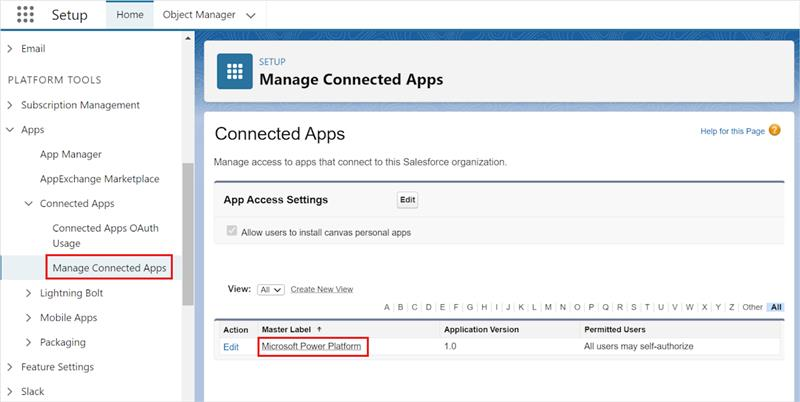
- Select Edit policies.
- Under OAuth Policies, select one of the following values for Permitted Users:
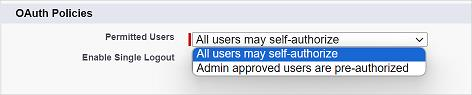
- All users may self-authorize: This option allows any authenticated Salesforce user to connect to the Salesforce instance through the Microsoft Power Platform connector used by Sales app, Microsoft Power Automate, and potentially other apps to gain access to Salesforce, thus resolving the issue.
- Admin approved users are pre-authorized: This option enables administrators to explicitly grant permissions to individual users through Profiles and Permission Sets. For more information, see Connected Apps and Manage Access to a Connected App. Disclaimer: The Salesforce website is a third-party resource and is not affiliated with Microsoft. Please proceed with caution and verify any downloads or instructions directly with the manufacturer.
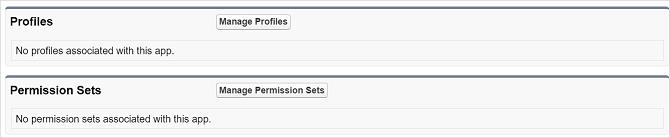
- Select Save.
- Salesforce admin settings block Outlook access (very common after Outlook UI changes and migration to New Outlook)
Salesforce Inbox / Salesforce Outlook plugin may appear but refuse to authenticate if Salesforce hasn’t allowed access from Outlook domains.
To enable the Outlook integration for Salesforce, Salesforce Admins should navigate to Setup
- From Setup, in the Quick Find box, enter
Outlook, and then select Outlook Integration and Sync.
- Enable Let users access Salesforce records from Outlook.
- If reps use Outlook on the web, in the Microsoft Outlook Web App Domain section, add the domains that you want to allow access to Salesforce and check the option Allow access from any domain in this Salesforce‑managed list.
If you use Office 365, allow Salesforce access from the Office 365 Outlook on the web domain. If you’re using custom Outlook for the web domains, add those domains to allow access.
- Browser/domain / cookie issues (especially in Outlook Web)
Salesforce login may spin or fail if browser pop‑ups/cookies are blocked or if third‑party cookie blocking disrupts authentication.
- Enable pop‑ups for Outlook Web
- Ensure third‑party cookies are allowed
- Try in an incognito/private window to verify
Moreover, because the reasons behind this issue differ, this issue may present as a complex case that required back-end logs for further troubleshoot. Given the nature of the problem, the most effective next step is use your admin credentials to submit a support request through the Microsoft 365 Admin Center.
This route ensures that a Microsoft support engineer can initiate a remote session to investigate backend configurations, run advanced diagnostic tools, and, if necessary, escalate the case to specialized teams with access to internal systems and logs. These backend resources are essential for resolving issues that go beyond what’s visible in the user interface.
As community moderators, we’re here to guide you, but due to privacy and security limitations, we don’t have access to the backend tools required for a full resolution. For this reason, contacting Microsoft Support via the Admin Center is the most secure and efficient way forward.
I sincerely recommend you create a support ticket from Microsoft 365 Admin Center > Support > Help & Support.
Microsoft also provides customer service phone numbers based on your region. You can find the appropriate contact number here: Customer service phone numbers - Microsoft Support
For your security, please do not reply to this thread with this case number information. The official support line is the only secure way to handle these details.
I hope this information is helpful. Please follow these steps and let me know if it works for you. If not, we can work together to resolve this.
Thank you for your patience and your understanding. If you have any questions or need further assistance, please feel free to share them in the comments on this post so I can continue to support you.
I look forward to continuing the conversation.
If the answer is helpful, click "Accept Answer" and vote positively. If you have more questions about this answer, click "Comment".
Note: Follow the steps in our documentation to enable email notifications if you want to receive email notifications related to this topic.
' cx='32' cy='32' r='32' /%3E%3Ctext x='50%25' y='55%25' dominant-baseline='middle' text-anchor='middle' fill='%23FFF' %3ECC%3C/text%3E%3C/svg%3E)


' cx='32' cy='32' r='32' /%3E%3Ctext x='50%25' y='55%25' dominant-baseline='middle' text-anchor='middle' fill='%23FFF' %3EAN%3C/text%3E%3C/svg%3E)