Hello @chris cox,
Thank you for posting your question in the Microsoft Q&A Forum.
To return to the classic Outlook experience, here are a few steps you can try:
First, open the New Outlook app and check if you see the toggle button at the top that allows you to switch back to classic Outlook. If the toggle is available, simply turn it off, and Outlook will revert to the classic version.

If you don’t see the toggle, you can also go to Help > Go to classic Outlook within the New Outlook interface. This option is provided in the Help menu for users who want to switch back.

If neither option works, you can uninstall the New Outlook app from your device. To do this, go to Windows Settings > Apps > Installed apps, find New Outlook, and select Uninstall. After removing it, you can continue using the classic Outlook installed on your system.
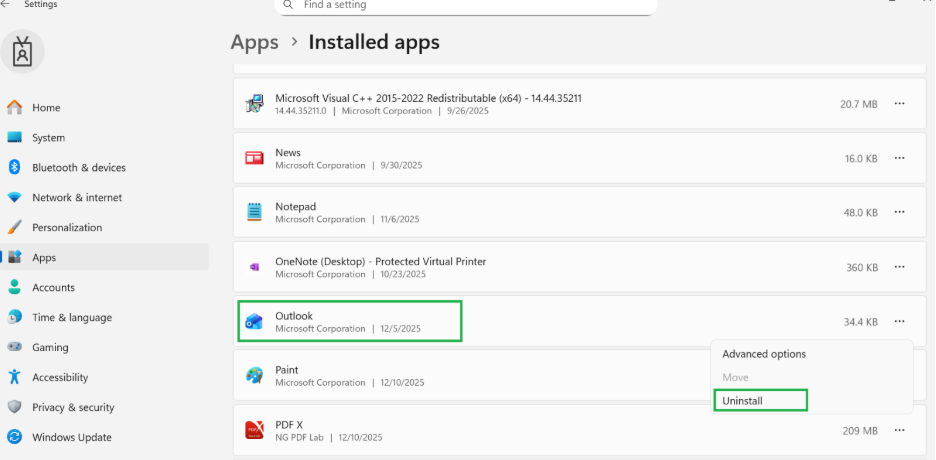
Please note that if you’re using a work account, your organization may have applied a policy that enforces the New Outlook experience. In that case, you’ll need to contact your IT admin to review this setting. For reference, here’s an official Microsoft article that explains how organizations can control the installation and availability of New Outlook: Control installation and use of new Outlook | Microsoft Learn
Please try the steps above and update us if the issue persists. We’ll be happy to assist further if needed.
Best regards,
Please understand that our initial response does not always resolve the issue immediately. However, with your help and more detailed information, we can work together to find a solution.
If the answer is helpful, please click "Accepted" and kindly upvote it. If you have extra questions about this answer, please click "Comment".
Note: Please follow the steps in our documentation to enable e-mail notifications if you want to receive the related email notification for this thread.
' cx='32' cy='32' r='32' /%3E%3Ctext x='50%25' y='55%25' dominant-baseline='middle' text-anchor='middle' fill='%23FFF' %3ECC%3C/text%3E%3C/svg%3E)


' cx='32' cy='32' r='32' /%3E%3Ctext x='50%25' y='55%25' dominant-baseline='middle' text-anchor='middle' fill='%23FFF' %3EDN%3C/text%3E%3C/svg%3E)