Note
Access to this page requires authorization. You can try signing in or changing directories.
Access to this page requires authorization. You can try changing directories.
Hybrid deployments in Exchange 2013 or later support organizations with Exchange servers in multiple Active Directory forests and a single Microsoft 365 organization.
Tip
Organizations that use a resource forest for user accounts and a single separate forest for Exchange servers aren't considered multi-forest. These organizations are considered single forest for hybrid deployments.
You can migrate public folders from an on-premises environment to Microsoft 365 only from a single Active Directory forest. Similarly, access to on-premises public folders in hybrid deployments is supported only when the public folders are located in a single Active Directory forest.
For more information about hybrid deployments, see Exchange Server hybrid deployments.
Important
A hybrid deployment with Exchange 2013 or later requires the following version of Exchange:
- Exchange 2013 Cumulative Update 15 (CU15) or later.
- Exchange 2016 Cumulative Update 8 (CU8) or later.
For more information, see Hybrid deployment prerequisites.
Multi-forest hybrid deployment prerequisites
Multi-forest hybrid deployment prerequisites are almost identical to the hybrid deployment prerequisites for a single-forest organization, with the following exceptions:
Autodiscover: Each Exchange forest must be authoritative for at least one SMTP namespace and the corresponding Autodiscover namespace. If there are shared domains across multiple Exchange forests, both mail routing and Autodiscover endpoints need to be configured and working properly between the Exchange forests before you configure your multi-forest hybrid deployment. Microsoft 365 must be able to query the Autodiscover service in each Exchange forest.
Certificates: All hybrid deployments require a digital certificate issued by trusted commercial certification authority (CA). For a multi-forest hybrid deployment, you can't use a single digital certificate for multiple Active Directory forests. Each forest must use a dedicated CA-issued certificate for secure mail transport to function correctly in a hybrid deployment. The certificate used for hybrid deployment features for each forest in a multi-forest organization must differ in at least one of the following properties:
Common Name: The common name (CN) of the digital certificate is part of the certificate's Subject field. This value must match the host being authenticated and is typically the external hostname for the Client Access server in the Active Directory forest. For example, mail.contoso.com. We recommend using the CN as the differentiating property between Active Directory certificates used in multi-forest hybrid deployments.
Issuer: The commercial CA that verified the organization information and issued the certificate. For example, VeriSign or Go Daddy. As an example in a multi-forest hybrid deployment, one forest would have a certificate issued by VeriSign and one forest would have a certificate issued by Go Daddy.
Important
The certificate installed on the Mailbox servers and Client Access server in each Active Directory forest used for mail transport in the hybrid deployment (and Edge Transport servers, if deployed) must all be issued by the same CA and have the same common name.
On an Edge Transport server, if the certificate common name and issuer name don't match, you can manually set them in the Receive connector using following commands in The Exchange Management Shell:
$cert = Get-ExchangeCertificate -Thumbprint "<Thumbprint of the certificate>"

$tlscertificatename = "<i>$($cert.Issuer)<s>$($cert.Subject)"

Get-ReceiveConnector "<Name of the Receive connector>" | Set-ReceiveConnector -TlsCertificateName $tlscertificatename
Exchange servers: At least one of the following Exchange servers is required in each Active Directory forest configured for hybrid deployment:
Exchange 2013 with the Client Access server role.
The Client Access server is the inbound secure mail transport endpoint for Microsoft 365 and enables the Hybrid Configuration wizard to run in the Active Directory forest. At least one Mailbox server role is required in each Active Directory forest configured for hybrid deployment. The Exchange 2013 Mailbox server is the outbound secure mail transport endpoint for messages sent to Microsoft 365 and the Exchange Online organization.
Exchange 2016 or later server with the Mailbox server role.
The Mailbox server role handles all inbound and outbound secure transport between your on-premises organization and Exchange Online.
Namespace planning: Each Exchange forest requires its own unique externally discoverable namespace. You specify a forest's unique namespace in the Hybrid Configuration wizard when you run it in each forest.
Active Directory synchronization: All hybrid deployments require Active Directory synchronization with Microsoft 365. If your organization already set up Active Directory synchronization between your multi-forest organization and Microsoft 365 using Forefront Identity Manager, you can use Microsoft Entra Connect.
Single sign-on (optional): Admins can choose to configure an SSO server in each Active Directory forest, or to configure a single SSO server if a two-way forest trust is configured between the forests. You use either AD FS or password sync to allow for a seamless user authentication experience.
For more information, see Single sign-on with hybrid deployments.
For a full listing of hybrid deployment prerequisites, see Hybrid deployment prerequisites
Multi-forest hybrid deployment scenario
The following example provides an overview of a typical Exchange 2013 multi-forest deployment:
- Forest A contains the contoso.com domain.
- Forest B contains the sale.contoso.com domain.
- Each forest contains domain controllers, one Exchange 2013 Client Access server, and one Exchange 2013 Mailbox server.
- Remote Contoso users use Outlook Web App to connect to Exchange 2013 over the internet to check their mailboxes and access their Outlook calendar.

As the admin for Contoso, you're interested in configuring a hybrid deployment:
- You deploy and configure a required Active Directory Synchronization server in Forest A.
- You decide to deploy an Active Directory Federation Services (AD FS) server to minimize the number of credential prompts for access to Microsoft 365 services.
After you complete the hybrid deployment prerequisites and use the Hybrid Configuration wizard to select options for the hybrid deployment, your new topology has the following configuration:
Users sign in using their existing network account credentials ("single sign-on").
User mailboxes use multiple email address domains. For example:
- Mailboxes in Forest A and some mailboxes in Exchange Online use contoso.com mail addresses.
- Mailboxes in Forest B and some mailboxes in Exchange Online use sales.contoso.com email addresses.
The on-premises organization delivers all to the internet The on-premises organization controls all messaging transport and serves as a relay for the Exchange Online organization ("centralized mail transport").
On-premises and Exchange Online organization users can share calendar free/busy information with each other. Organization relationships configured for both organizations also enable cross-premises message tracking, MailTips, and message search.
On-premises and Exchange Online users use the same URL to connect to their mailboxes over the internet.
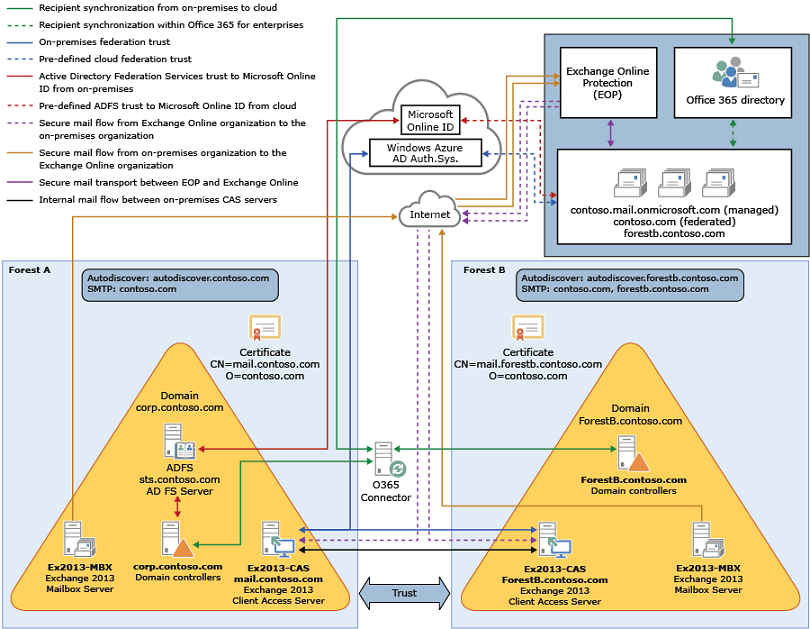
If you compare the before and after configurations, you see configuring a hybrid deployment added servers and services that support more communication and features shared between the on-premises and Exchange Online organizations. The changes are summarized in the following table:
| Configuration | Before hybrid deployment | After hybrid deployment |
|---|---|---|
| Mailbox location | Mailboxes on-premises only. | Mailboxes on-premises and in Exchange Online. |
| Message transport | On-premises Client Access servers handle all inbound and outbound message routing. | On-premises Client Access server handles internal message routing between the on-premises and Exchange Online organization. |
| Outlook Web App | On-premises Client Access server receives all Outlook Web App requests and displays mailbox information. | On-premises Client Access server redirects Outlook Web App requests to either the on-premises Exchange 2013 Mailbox server or provides a link to sign in to the Exchange Online organization. |
| Unified GAL for both organizations | n/a | On-premises Active Directory synchronization server replicates Active Directory information for mail-enabled objects to the Exchange Online organization. |
| Single-sign on used for both organizations | n/a | On-premises Active Directory Federation Services (AD FS) server supports using single-sign on credentials for mailboxes located on-premises or in the Microsoft 365 organization. |
| Organization relationship established and a federation trust with Microsoft Entra authentication system | Trust relationship with the Microsoft Entra authentication system and organization relationships with other federated Exchange organizations can be configured. | Trust relationship with the Microsoft Entra authentication system is required. Organization relationships are established between the on-premises and Exchange Online organization. |
| Free/busy sharing | Free/busy sharing between on-premises users only. | Free/busy sharing between both on-premises and Exchange Online users. |
Configuring hybrid deployments in multi-forest organizations
To configure a hybrid deployment for a multi-forest organization, you need to complete the following basic steps:
Verify you meet the hybrid deployment prerequisites. See the prerequisites listed earlier in this article and Hybrid deployment prerequisites. Typically, only one forest needs an Active Directory synchronization server installed. For more information, see Topologies for Microsoft Entra Connect.
Obtain a certificate from a commercial CA for each Active Directory forest that meets the requirements listed previously in this article.
Install the certificate on all Exchange 2013 Client Access and Mailbox servers (or Exchange 2016 Mailbox servers) in each forest.
Complete the steps outlined in Create a hybrid deployment with the Hybrid Configuration wizard for the primary forest.
Important
Be sure to select the certificate designated for the primary forest in the Hybrid Configuration wizard and select the primary SMTP domain for the forest.
Complete the steps outlined in Create a hybrid deployment with the Hybrid Configuration wizard for the secondary forest.
Important
Be sure to select the certificate designated for the secondary forest in the Hybrid Configuration wizard and select the primary SMTP domain for the forest.